Events
You can track arbitrary small events on your websites without creating new leads or conversions for them. This is useful, for example, if you want to know the bounce rate of visitors who spent less than 10 seconds on your site, or the number of visitors who fully opened the site and who scrolled. Each event is assigned to a click, allowing you to later evaluate the number of events, their conversions, and the bounce rate.
Setting up events
Events can be configured in the "Statistics" and "Analytics" sections. Go to one of these sections and click on the "Event" (two lines) button above the table.
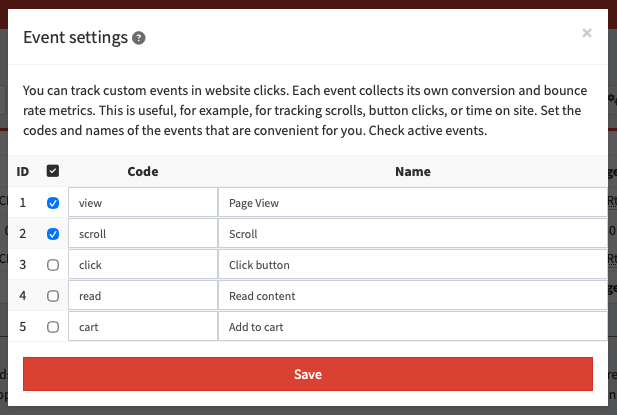
A pop-up window with event settings will open:
- Activity checkbox: enables the corresponding event.
- Code: specifies the character code to use in the
ev parameter of the request.
- Title: used in reports to visually identify the event.
You can use up to five different events at the same time. After activating the events, you can set up a special kind of statistics section.
Statistics by events
In the statistics section, you can enable additional columns for each of the events: the number, conversion, and bounce rates for clicks, uniques, or next-step transitions. The bounce rate (decline rate) in this case is simply the inverse of the conversion rate.
The following fields are used in the event statistics:
- Number of events of this type.
- CR: conversion rate of unique clicks to the event.
- DR: bounce rate of unique clicks.
- CRt: conversion rate of all clicks to the event.
- DRt: bounce rate of all clicks.
- CRn: conversion rate of clicks to the event to the next step.
- DRn: bounce rate of clicks to the next step.
How do I send an event?
To create an event, you need to send a GET request to your flow link and specify the event parameters:
event - the click ID for which the event should be sent, usually {click}.ei - the numeric event ID.ev - the symbolic event ID.dup=1 - allow creating duplicates of an event for a single click.
You can specify either a symbolic or numeric event ID. Required fields are event+ev or event+ei, respectively.
Use the dup=1 parameter only if you really need to collect the same event multiple times for the same click. This can result in a negative bounce rate in your statistics, and conversion rate exceeding 146%.
Example link for sending an event:
https://click.domain.com/a1b2c3d4e5f6?event={click}&ev=pageview
Instead of https://click.domain.com/a1b2c3d4e5f6, you should use your flow link. Not the postback, but the actual flow link, the one you're sending traffic. You can use the tracker's standard domain, or any parked domain.
If you plan to track events via a postback, for example, counting mobile app installs, pass the flow ID to one of the target site's tags. For example: subid={click}&source={flow}. This way, you can use a link like http://domain/{source}?event={subid}&ev=install with all flows at once.
Popular scenarios
The most common use case for custom events is to analyze teaser traffic for bots. In this case, we track three events: pageview for the visit time, scroll for page scrolling, and click for a click somewhere on the page. This code must be added to your site's storage, it won't work on third-party sites.
Pageview and bounce rate
For tracking, we create an event called pageview and include conversion and bounce rates in the statistics based on the total number of clicks.
Implementation via request:
<script type="text/javascript">
setTimeout(() => {
  fetch(location.pathname + '?event={click}&ev=pageview', { method: 'GET', keepalive: true }).catch(() => {});
}, 10000);
</script>
Implementation via image:
<script type="text/javascript">
setTimeout(() => {
  (new Image()).src = location.pathname + '?event={click}&ev=pageview';
}, 10000);
</script>
Page scroll
For tracking, create an event named scroll and include conversion to clicks or uniques and the number of events in the statistics.
Implementation via request:
<script type="text/javascript">
addEventListener('scroll', function f() {
  removeEventListener('scroll', f);
  fetch(location.pathname + '?event={click}&ev=scroll', { method: 'GET', keepalive: true }).catch(() => {});
}, { passive: true });
</script>
Implementation via image:
<script type="text/javascript">
addEventListener('scroll', function f() {
  removeEventListener('scroll', f);
  (new Image()).src = location.pathname + '?event={click}&ev=scroll';
}, { passive: true });
</script>
Page click
For tracking, create an event named click and include the click conversion rate and event count in the statistics.
Implementation via request:
<script type="text/javascript">
addEventListener('click', function f() {
  removeEventListener('click', f);
  fetch(location.pathname + '?event={click}&ev=click', { method: 'GET', keepalive: true }).catch(() => {});
}, { passive: true });
</script>
Implementation via image:
<script type="text/javascript">
addEventListener('click', function f() {
  removeEventListener('click', f);
  (new Image()).src = location.pathname + '?event={click}&ev=click';
}, { passive: true });
</script>